Step 3: Customize your blog
Logging in
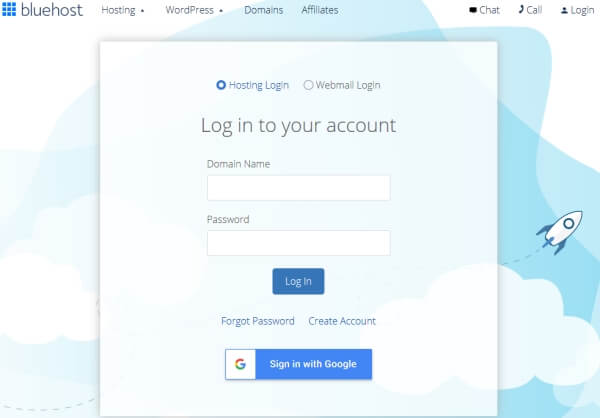
If you are not already logged-in, go to Bluehost.com and click “Login” on the top right to bring up the login screen. You can then login using your domain name and the password you set in the previous step. If you have misplaced your password you can reset it by clicking the “Forgot Password” link.
Once you log-in you will be taken to your BlueHost Portal. From the portal you can click “Log in to WordPress” to be logged-in automatically to your blog.
Changing your blog design
Once you login you will be in the WordPress administrator area. This is where you can make any changes you want to your blog.
Everyone has a different idea of how they want their blog to look. One of the great things about a WordPress blog is that you can change your entire layout and design with just a few clicks.
In WordPress, blog layouts are known as “Themes”. What is a blog theme? Themes control the entire design of your blog. To change your theme you are going to click on the “Appearance” tab on the left menu.
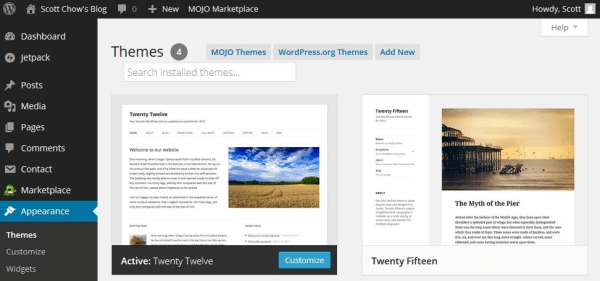
You will see several themes are already installed on your blog: Twenty Seventeen, Twenty Sixteen, etc. These are well-designed, clean-looking themes that can work for just about any type of blog. In fact, many of the world’s top bloggers use one of these themes.
Unless you have a very specific design in mind for your blog, I suggest you use one of these themes to start with. For our example, let’s use the “Twenty Sixteen” theme. In order to activate the theme on your blog, hover over the theme and click the “Activate” button. That’s it! You have changed the entire design of your blog with just one click!
Comments
Post a Comment